Example
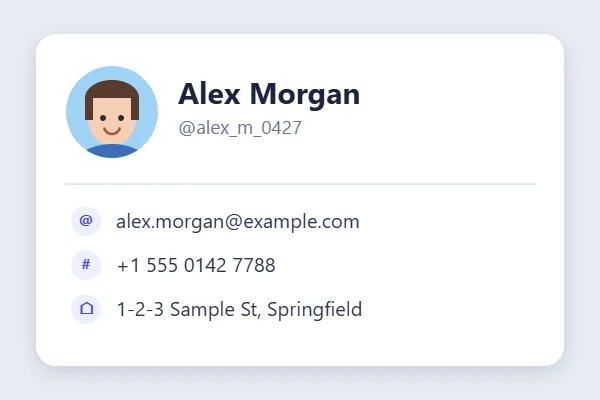
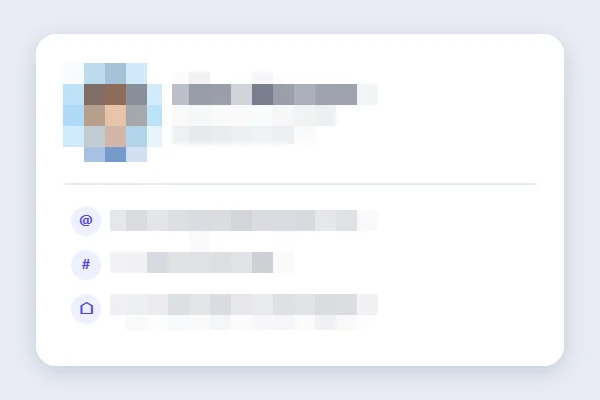
Three areas (the photo, the name and the contact details) selected and pixelated. The name and details shown are made up.
How to use
- Choose an image — Click “Choose image” or drag and drop a file.
- Mark what to hide — Drag on the preview (or trace with your finger on a phone). The area is pixelated right away. Add as many areas as you need.
- Adjust the effect — Choose Pixelate, Blur or Fill and set the strength. Made a mistake? Press Undo.
- Download — Click the download button to save at the original resolution.
What this tool does
Pixelate any area in one drag
Draw a box over what you want to hide and it’s censored on the spot. Photos with several faces or screenshots with a name in many places are no problem — each box adds another area.
Pixelate, blur or fill
Besides a classic mosaic, you can blur or cover areas with a solid color. Adjust the strength with the slider at any time and every area updates. You can also apply the effect to the whole image.
Undo and redo
Drew a box in the wrong place? Undo it (or press Ctrl+Z on a computer). Your original file is never changed.
Great for
- Faces and license plates in photos you share on social media
- Names, user IDs and email addresses in screenshots
- Personal details that show up in stream or video footage
- Addresses, phone numbers and card numbers in photos of documents and receipts
Tips for hiding things securely
- Text and numbers can sometimes still be read through a fine mosaic. Use a larger pixel size, or choose Fill to be sure.
- Draw the box a little larger than what you want to hide.
- After saving, zoom in on the image to check everything is covered before you post it.
FAQ
Are my images uploaded to a server?
No. Opening, editing and saving all happen inside your browser. Your image is never sent to or stored on a server.
Is it free? Do I need an account?
It’s completely free, and there’s nothing to sign up for.
Can the pixelation be removed from a saved image?
No — once saved, the mosaic can’t be undone. Your original file isn’t changed, so if you want to start over, just open the original again.
Is photo metadata (EXIF, location) kept?
No. The saved image contains no metadata such as the date taken or GPS location.
Does it work on my phone?
Yes. On iPhone and Android, trace over the preview with your finger to mark areas. Very large images are scaled down automatically to fit your device’s memory.