Example

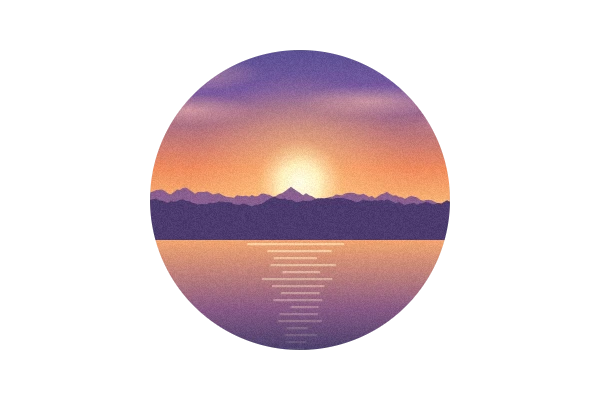
A circle crop around the sun. The area outside the circle is transparent, so it works as a profile icon as is.
How to crop an image
- Choose an image — click “Choose image” or drag and drop it. A crop frame appears in the middle.
- Adjust the area — drag inside the frame to move it and drag the corners to resize (use your finger on a phone). Drag outside the frame to start a new selection.
- Pick a ratio or shape — choose “1:1” for a square, or “Circle” for a round profile picture.
- Download — check the result under “Cropped image” and click “Download”.
Features
Crop any area
Cut away unwanted edges from photos, or keep just the part of a screenshot you need. The size of the cropped image in pixels is shown as you go.
Crop to square, 4:3 or 16:9
Pick an aspect ratio and the frame keeps it while you move and resize. Use “Rotate ratio” for portrait 3:4 or 9:16. Handy for social media posts and thumbnails.
Circle crop
Choose “Circle” to save a PNG with everything outside the circle transparent — perfect for profile pictures and avatars.
Great for
- Round profile pictures for social media and chat apps
- Square images for Instagram and other feeds
- 16:9 images for YouTube thumbnails and stream layouts
- Keeping just the important part of a screenshot
FAQ
Are my images uploaded to a server?
No. Everything — opening, cropping and saving — happens in your browser. Your images are never sent to or stored on a server.
Is it free? Do I need an account?
It’s completely free, with no sign-up or login.
Does cropping reduce the quality?
The cropped area is saved at its original resolution. PNG keeps the quality exactly; JPG and WebP are saved at high quality (92).
What happens outside the circle?
It becomes transparent. Circle crops are saved as PNG, which keeps transparency, so the image looks round on any background.
Is photo metadata (EXIF, location) kept?
No. The saved image doesn’t include the date taken, location or other metadata.
Does it work on my phone?
Yes. In the browser on iPhone and Android you can move the frame with your finger and drag the corners to resize it.